
PM allows you to create a notation specific to a charge\payment item.
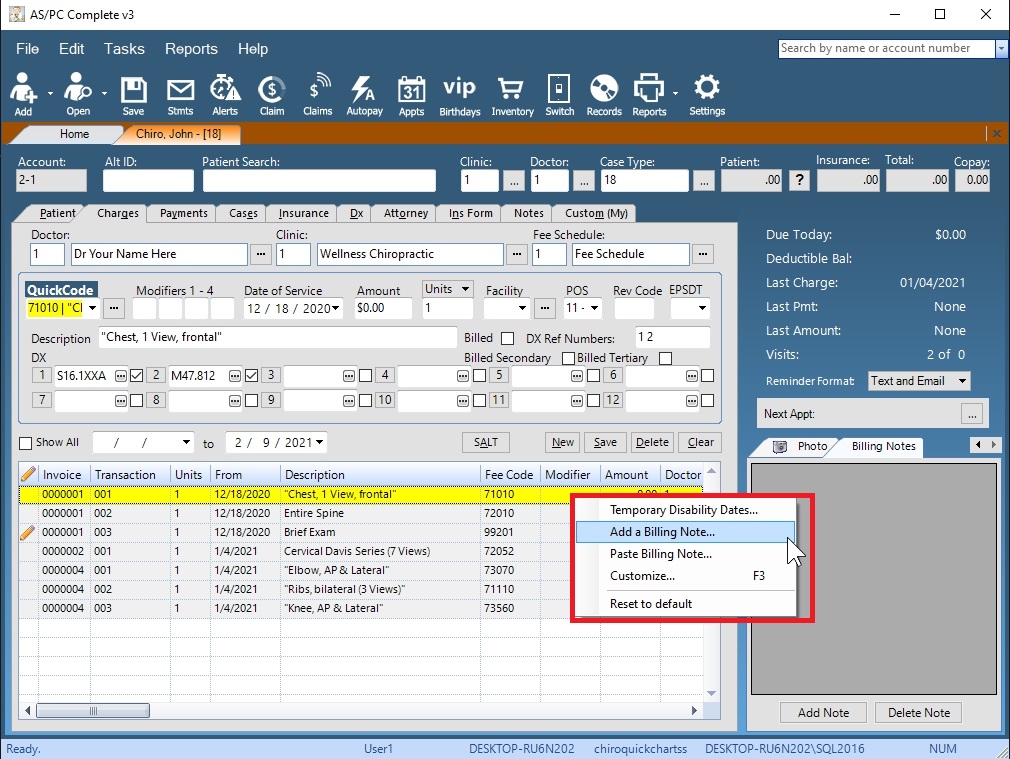
Right click on a line from the Charge or Payment screen and choose Add a Billing Note from the menu or select the line item and click Add Note on the tabbed snapshot window.
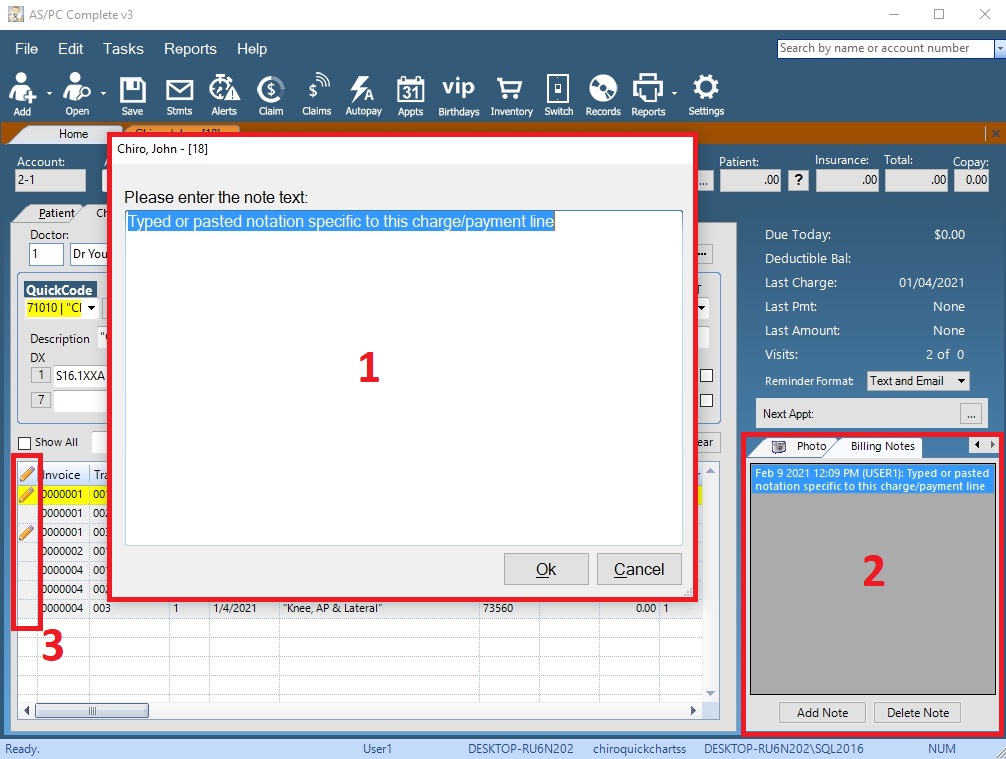
1 - The Billing Note Entry box will appear. You can type or paste text in to this box and it will be stored as a note on this specific charge/payment item.
2 - Notes stored with a line item are visible on the billing notes tab and can be reopened by double clicking on the note. Multiple notes can be stored for each line item.
3 - Line items with notes will display a Pencil icon within the charge/payment grid.
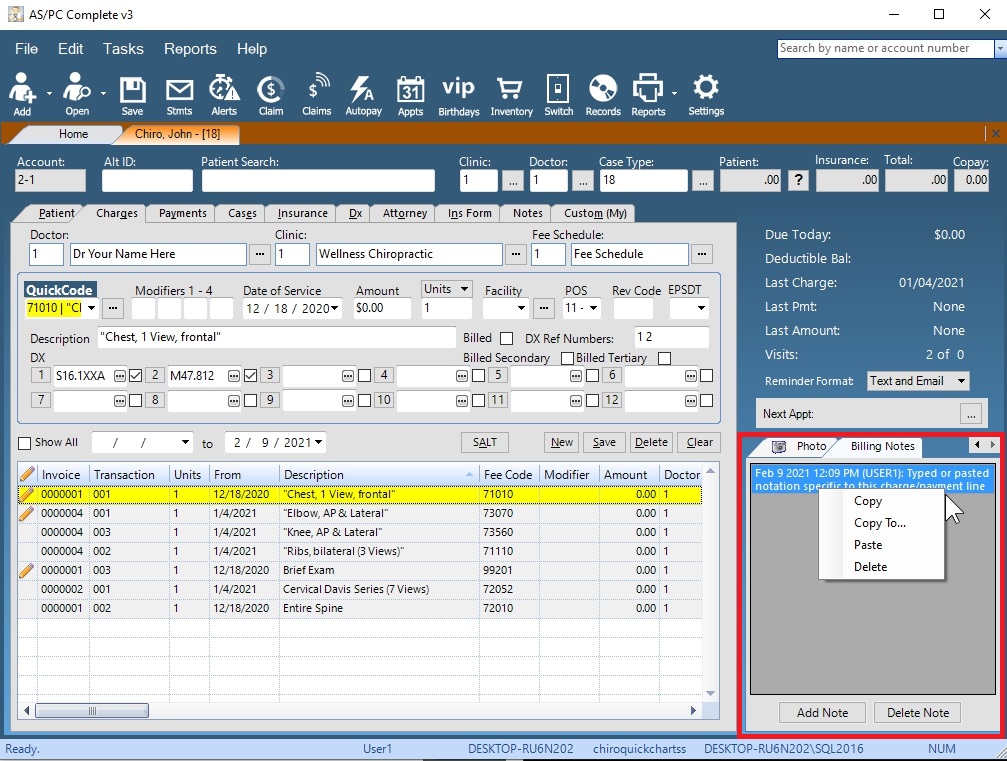
Notes can be transferred between line items by right clicking on a note and using copy and paste. Copy To allows you to copy a note between multiple line items.
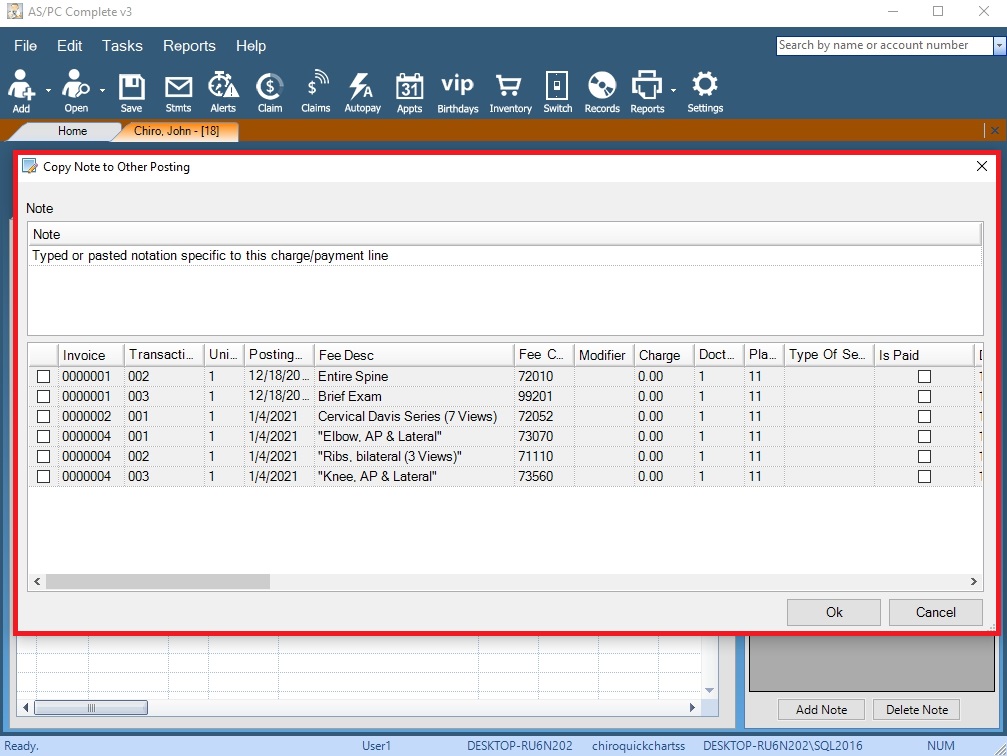
Copy to allows you to copy a note entered for one line item and apply it to any number of other lines by check marking those transactions and pressing OK.
0 Comments