
EHR allows you to use a BarCode for check in to the Kiosk, instead of a User Name and Password.
Please note - To use this feature you will need a Barcode scanner and a Barcoded key tag issued to the patient. You can purchase key tags online with your own branding, or simply use something your patient already has. An example of that would be a Gym key, or a grocery club tag. We recommend this scanner for use with Kiosk.
To enable Bar Code check in go to Settings (1) - Style and configure patient sign in options (2) - General settings (3). Place a check mark on Key Card Mode (4). 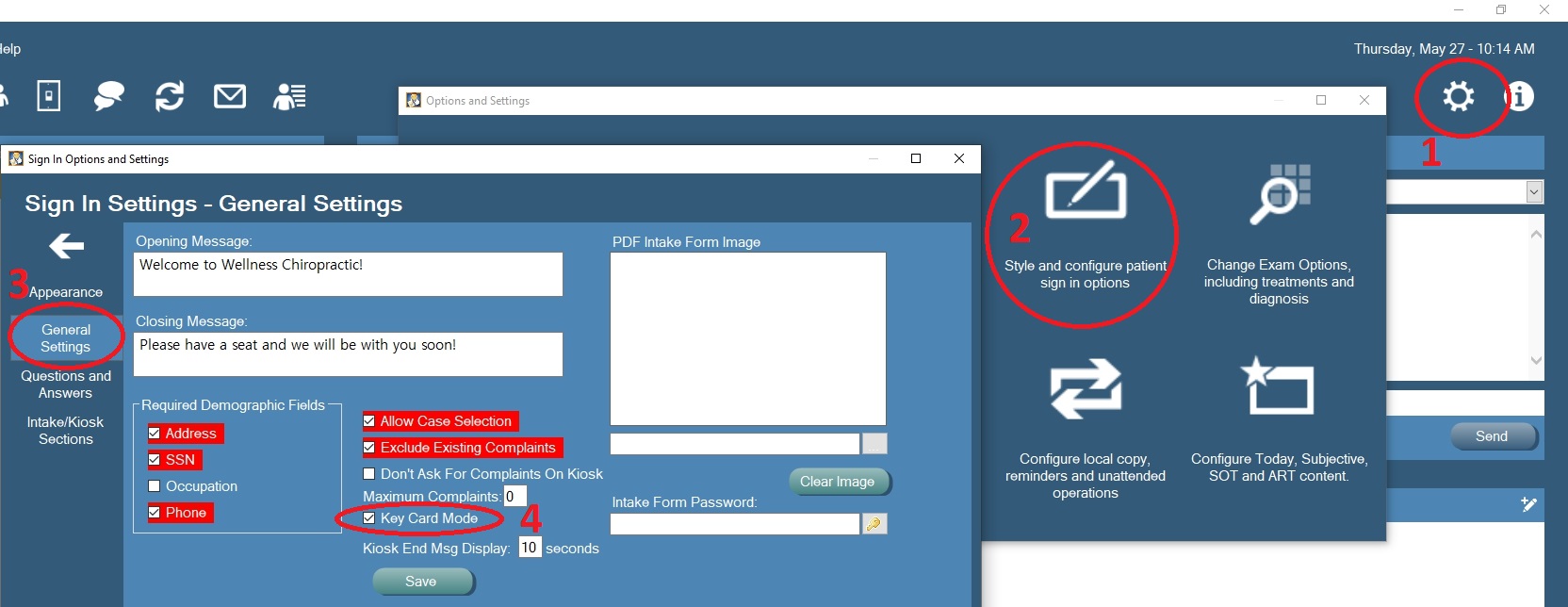
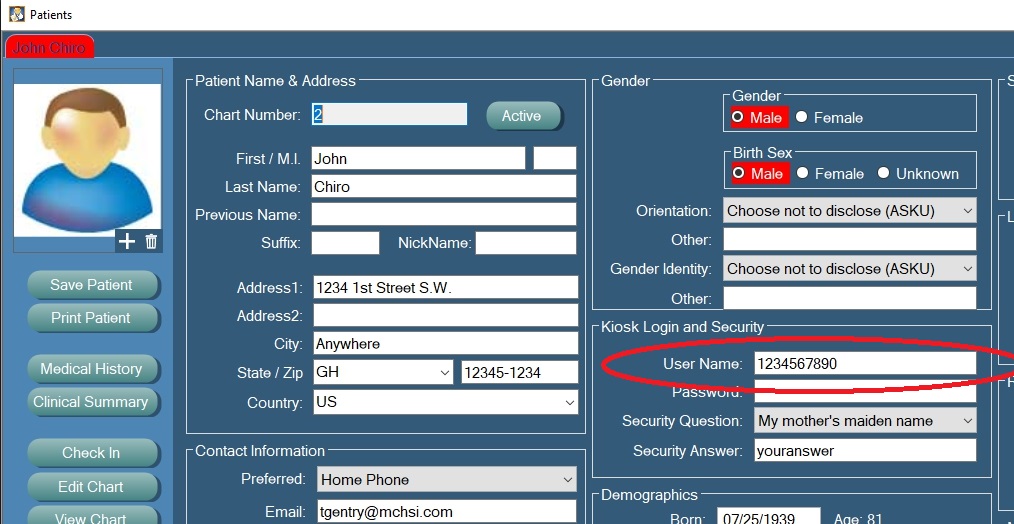
On the Patient Demographics screen Scan the bar code (or manually key in) to the User Name box and save the record. Password and Security questions are not required for bar code check in
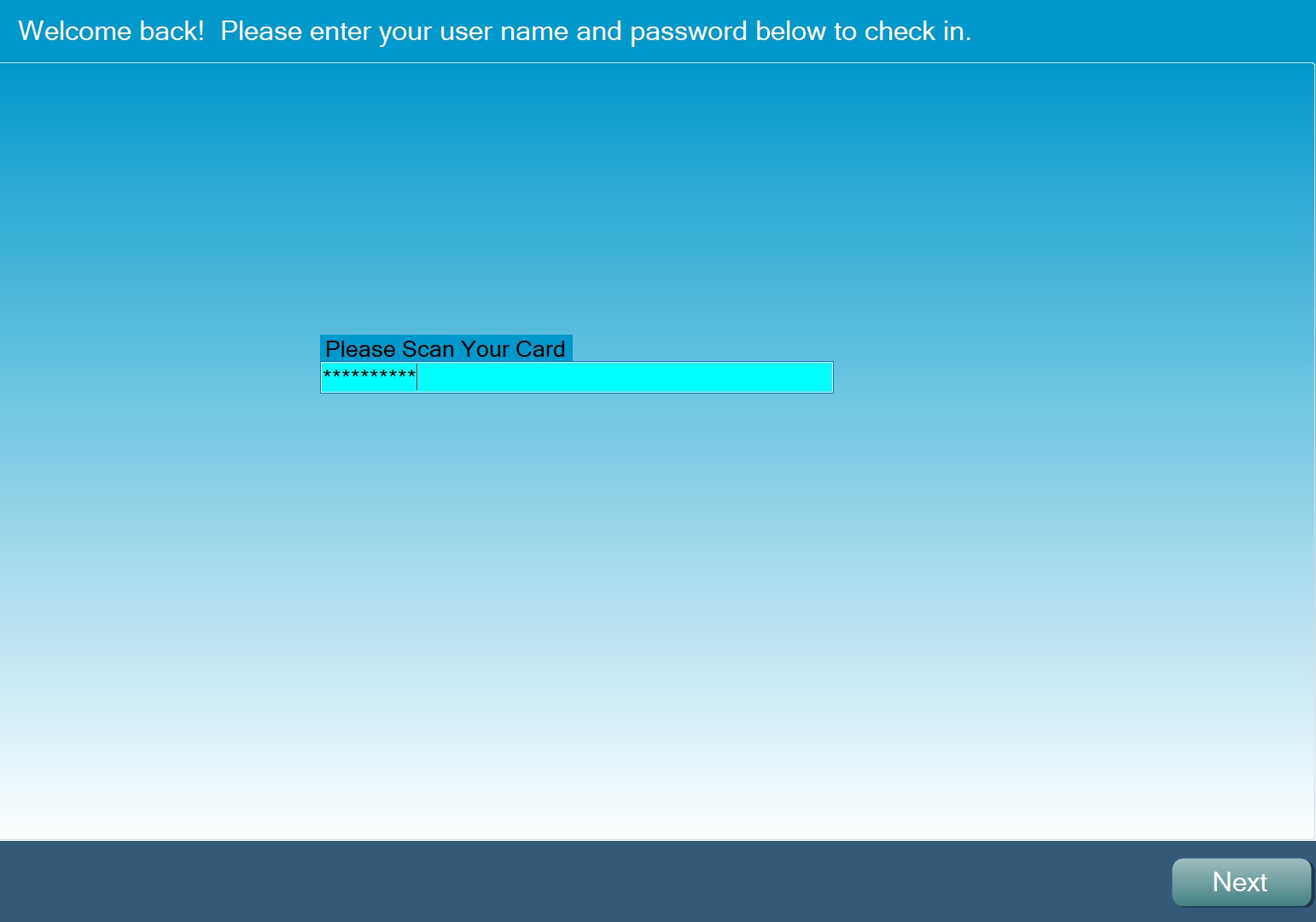
When you launch Kiosk the UserName/Password fields will be replaced with "Please scan your card". The Patient can scan their barcoded card and regular check in will begin.
Please note - at this time you can't use both Barcodes and UserName/PW. It's one or the other. The next update to this functionality will add the ability to use both options at once - some Patients can use a bar code and other can stick with their Username/Password.
0 Comments