
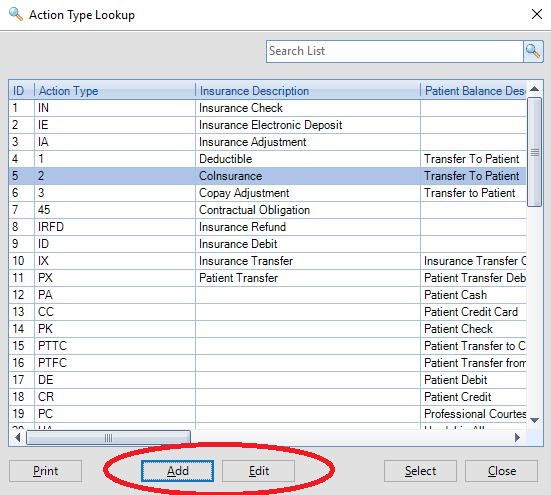
They are pretty simple to setup and you will see looking at the defaults many of them do the exact same thing and just record it as a different type for tracking. For example an Insurance Check and Insurance Electronic Deposit have the exact same effect on balances, but it lets you see them broken down on a Daysheet.
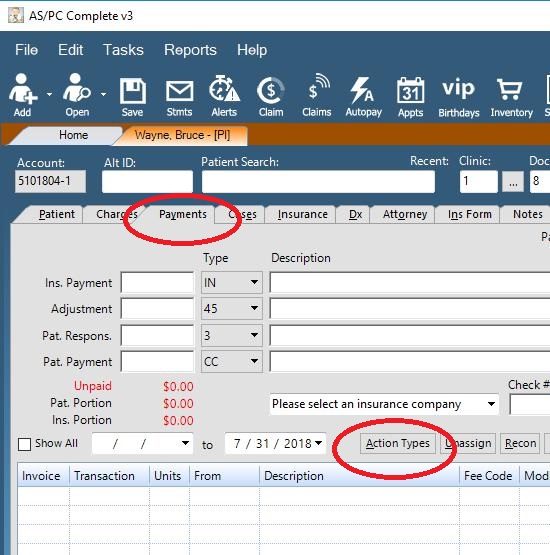
From the Payment tab in a Patient chart, press the Action Types button.
To edit an existing Action Type, highlight that line, and press Edit. To add a new option, press the Add button. Note that Defaults can not be edited, but you can alter your custom ones.
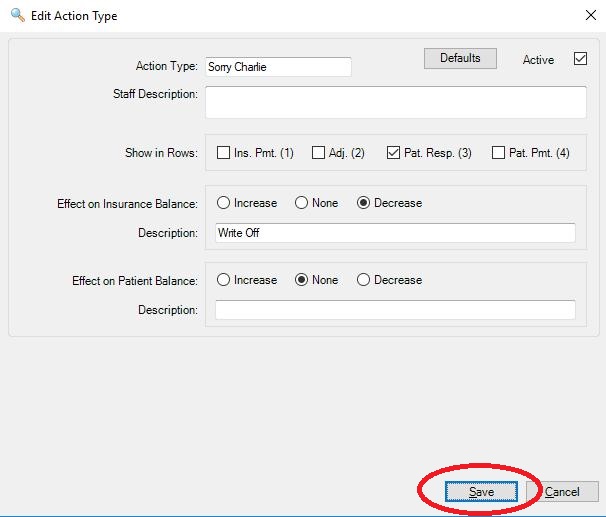
The way they work is all about the 'effect on balance' and what Row you put it in. Below is what you see when click to add a new one. The Action Type will be its name you see in the list on the payment screen, the Staff Description will be for internal use. Show in Rows are the Payment Boxes from Top to Bottom. You want to put a custom adjustment in Row 2, or a custom patient payment in Row 4, etc. Then you just have to choose what effect it has on the balances and enter the actual description it will auto fill when used. It might help to look at the list of the default ones you use and see how they effect the balance to understand it. Basically it can only do one of three things to each balance, increase it, decrease it, or nothing at all.
So for example if we wanted to add a custom patient responsibility transfer for Row 3 we would do something like this. Decrease Insurance Balance + Increase Patient Balance. This would subtract money from the ins side and add it to the patient side. By putting it in Row 3 we insure its recorded as a transfer and not a payment, that is important for keeping the Daysheet accurate. When you are done press the Save button.
0 Comments