
Please Note : The Local Copy in EHR and PM is controlled by a background program running on your server called the CQCService. The CQCService is only accessible directly from the server. The steps in this FAQ assume that you are on the server, logged in to Windows as a user with Administrative rights, and your user account is an ADMIN in EHR/PM Attempting these steps from a computer other than the server will result in errors.
Troubleshooting Local Copy creation in PM
If you are currently logged in to PM at the server close it out. Start with PM closed.
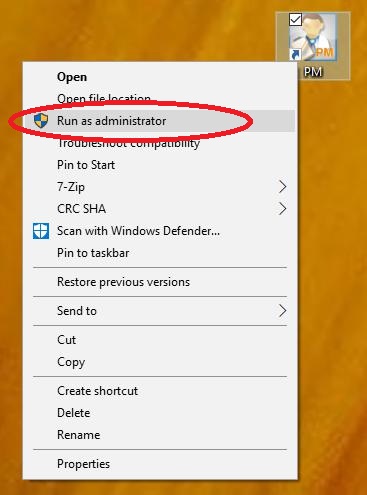
Right click on your PM Desktop Icon and choose "Run as Administrator" from the menu.
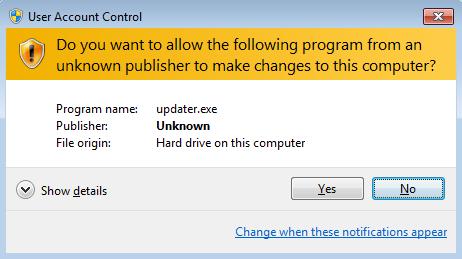
If prompted, answer Yes to allow the Program to make changes.
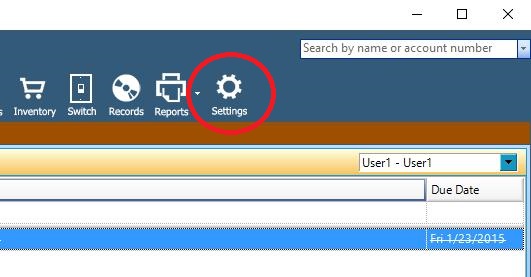
When the Login screen appears, log in as normal. Choose the Settings Gear from the Navigation bar.
Choose Security from the Category list.
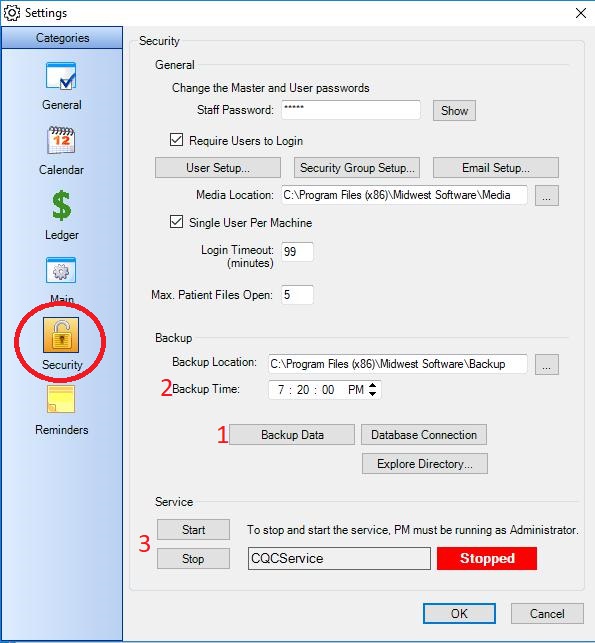
1 - Because your Local Copy was not created, the first thing to do is create one. Pressing the backup now button will create a new Local Copy. If there is an issue with the Backup Location, this process will fail. If that happens, please contact the Helpdesk.
2 - This is the time the Local copy is scheduled to run. At this time, the server must be powered on. If the server is off, or placed in Sleep mode at the time listed the Local Copy will not be created.
3 - Maybe the most common reason the Local Copy creation fails to run is the CQCService is Stopped. It's not unusual for the service to need to be manually restarted after a Server reboot, or after a round of Windows Updates. If the Service status shows a Red Stopped, like this example, Press the Start button. Once started the Service status will show Green Running
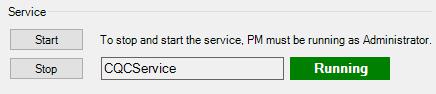
Once started Local Copy creation will resume the normal schedule.
If none of those things seem to fit your specific situation please contact the Helpdesk.
Troubleshooting Local copy creation in EHR
If you are currently logged in to EHR at the server close it out. Start with EHR closed.
Right click on you EHR desktop icon and choose "Run as Administrator" from the menu.
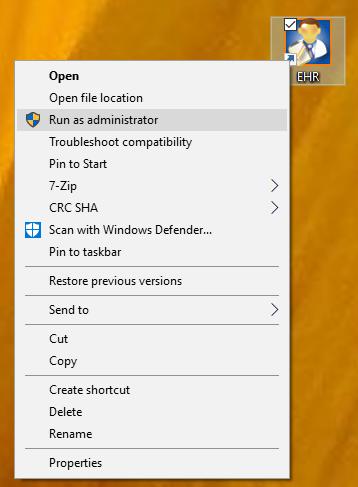
If prompted, answer Yes to allow the program to make changes
When the login screen appears, log in as normal. Choose the Settings gear from the Navigation bar.
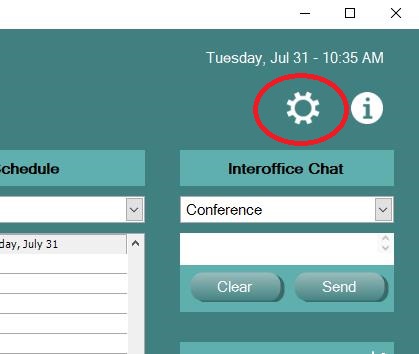
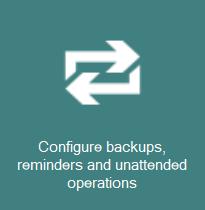
Choose Configure Backups, Reminders and unattended Operations
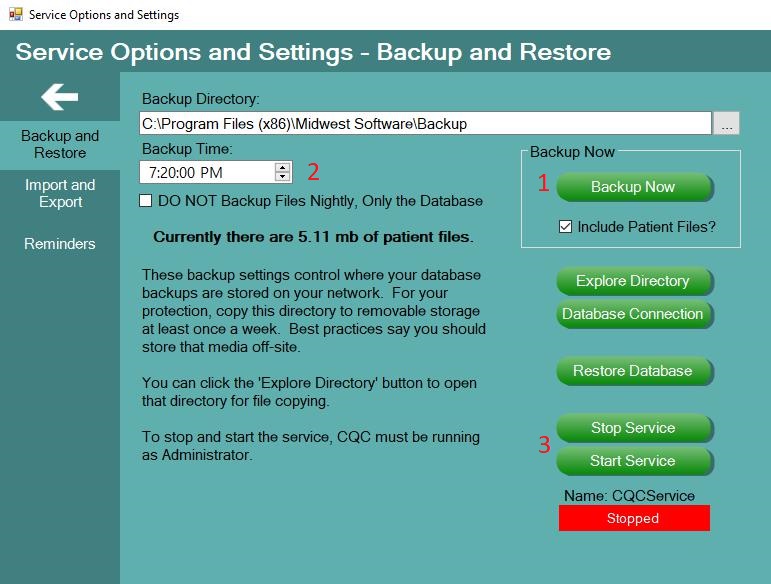
1 - Because your Local Copy was not created, the first thing to do is create one. Pressing the backup now button will create a new Local Copy. If there is an issue with the Backup Location, this process will fail. If that happens, please contact the Helpdesk.
2 - This is the time the Local copy is scheduled to run. At this time, the server must be powered on. If the server is off, or placed in Sleep mode at the time listed the Local Copy will not be created.
3 - Maybe the most common reason the Local Copy creation fails to run is the CQCService is Stopped. It's not unusual for the service to need to be manually restarted after a Server reboot, or after a round of Windows Updates. If the Service status shows a Red Stopped, like this example, Press the Start button. Once started the Service status will show Green Running
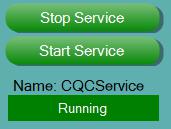
Once started Local Copy creation will resume the normal schedule.
If none of those things seem to fit your specific situation please contact the Helpdesk.
0 Comments