
In addition to the regular Patient Kiosk, EHR offers a PDF based Intake Form that can be distributed to Patients. The competed Form can then be imported directly to your EHR software to build the Patient record. It's extremely useful when you have a Website where that document can be downloaded and completed by a new Patient prior to their visit.
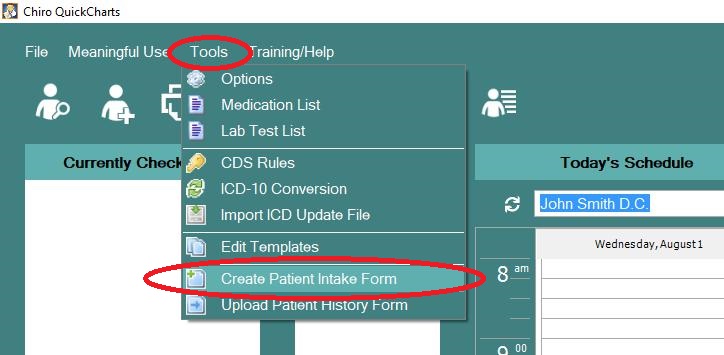
To get started choose Tools - Create Patient Intake Form from the EHR menu.
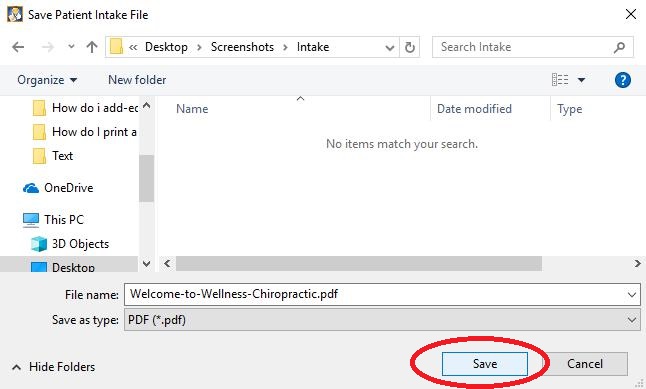
Choose a Location to save the file and press Save
When prompted, Choose Yes to open the File.

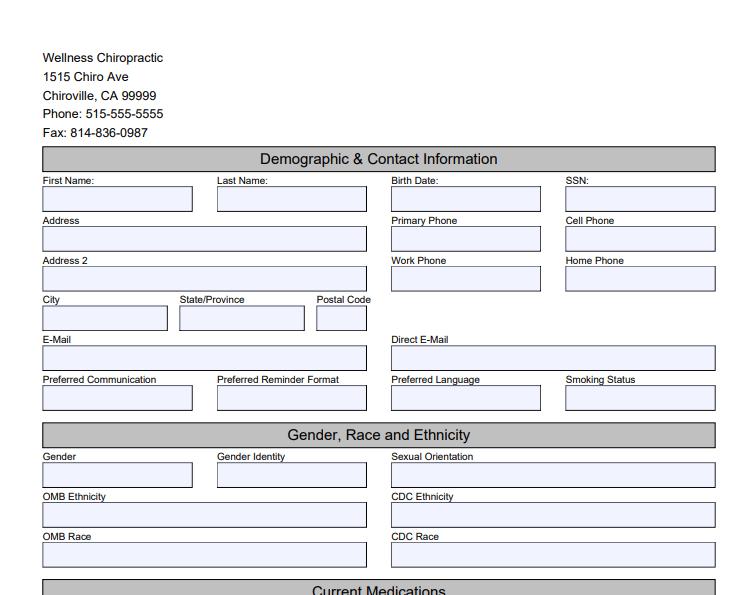
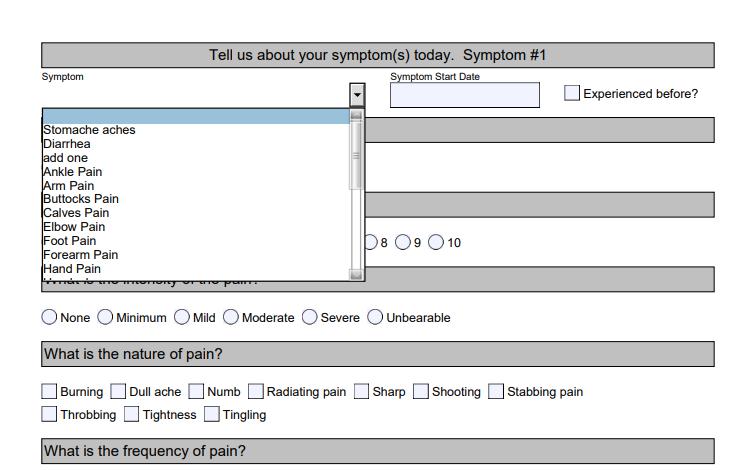
Now we can see the blank Intake form. The questions in the form mirror those in then Kiosk. Any section with Selections, like Complaints lists or Medication list, are exact representations of the choices you see on those Exam Screens.

Once your Patient has completed that document and sent it back to the office you can import that file and build their record.
Start by Choosing Tools - Upload Patient History Form from the EHR Menu.

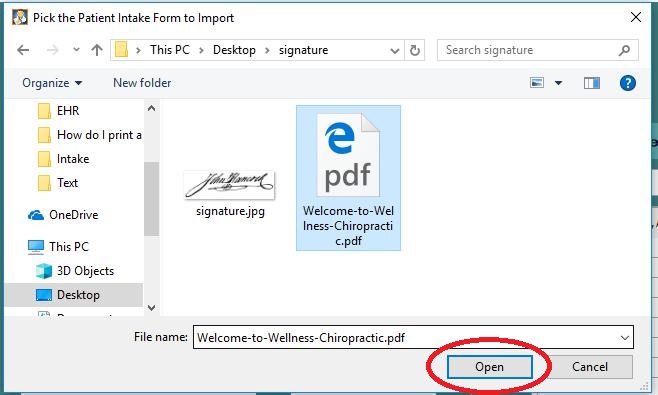
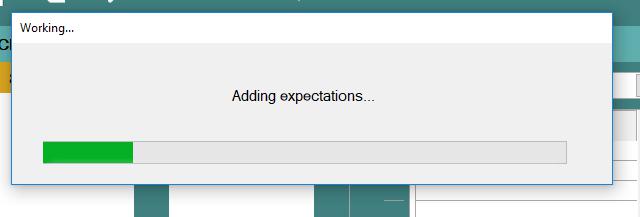
Browse to the Completed copy of the intake form and choose open. You will see several messages appear and disappear as the file is imported and the Patient record is created.
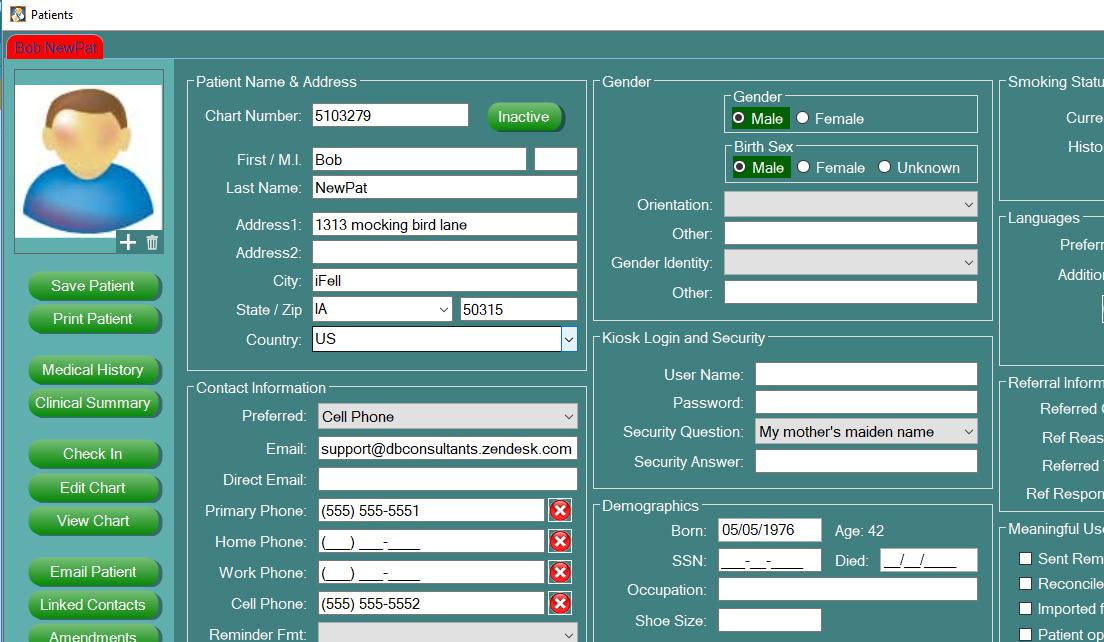
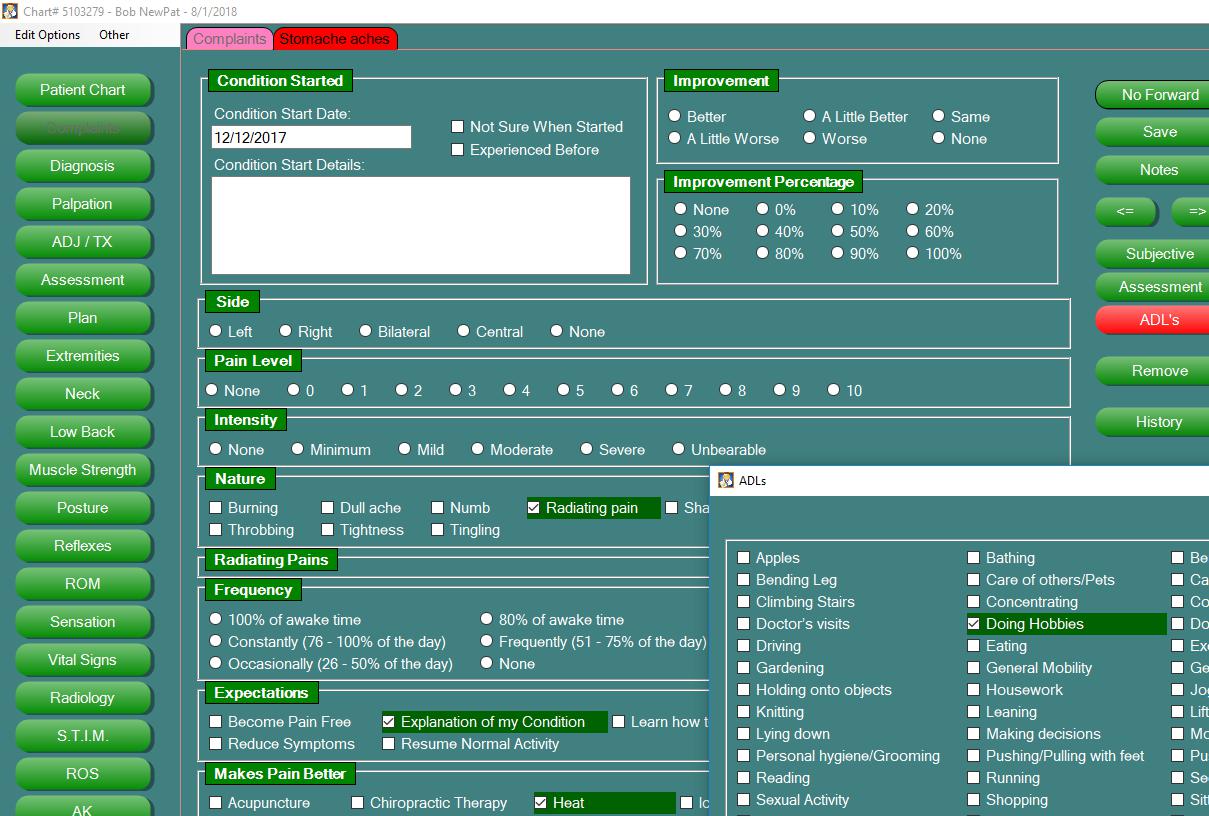
When the import is compete the New Patient will be check in to the lobby and their Demographics page will appear. At this point you are free to work in the patient record.
PLEASE NOTE - A Patient intake form that has been completed contains highly confidential information. The unedited version of the file can be emailed directly to the Patient, but the completed form should not be transmitted over a regular email. It is HIGHLY recommended that you work with your Webmaster to create a way to distribute and collect that file via a secure means directly from your Web page.
0 Comments