
Recreate Claim (Single Patient Chart)
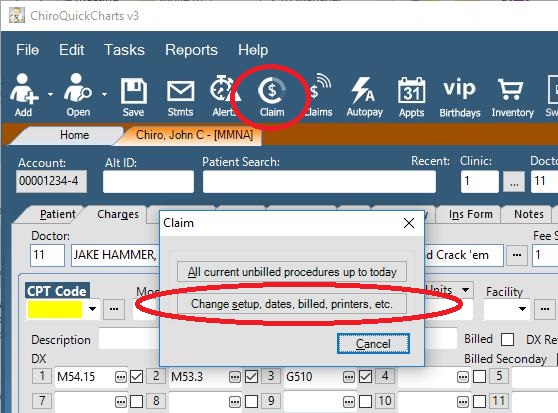
From the Patient record, click the Claim button and select Change setup, Dates, billed, printers, etc
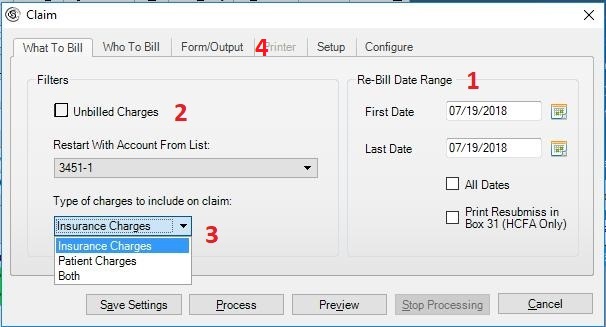
1 - Choose a date range to rebill
2 - Remove the check mark from Unbilled Charges
3 - Choose the type of Charges to rebill
4 - Click on the Form/Output tab.
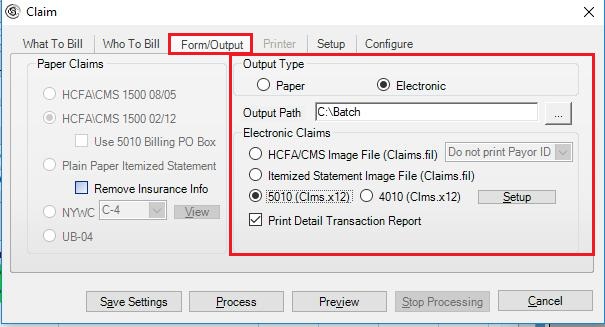
Ensure your output type is the correct format then press Process.
To Recreate Batch Claims (Multiple Charts)
For Electronic Claims (5010)
From the Reports Menu, choose Rebill Electronic Claims
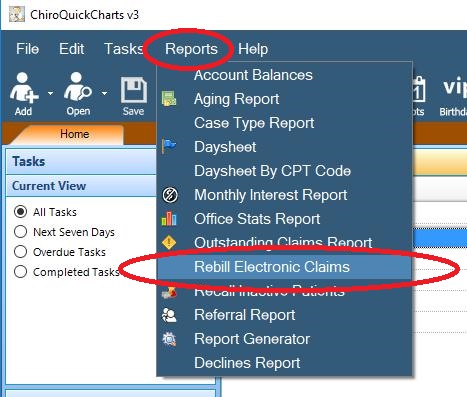
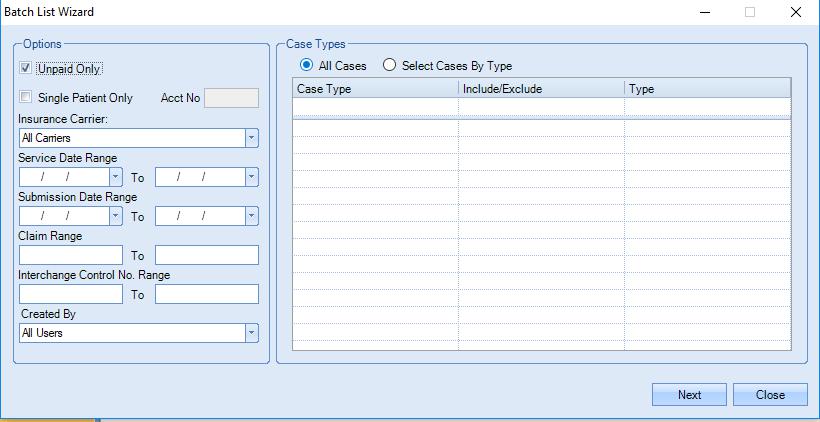
The Wizard screens will allow you to enter custom information in order to collect the claims that will be resubmitted. For advanced assistance using this wizard, please contact the HelpDesk directly.
The easiest way to find the claim or claims you want to rebill is using the Submission Date Range, which is the date you created the original claim, or the Service Date Range. Be sure to check Unpaid Only to avoid seeing claims already paid in full. This can be useful if you wanted to rebill all denied or unpaid claims from a batch, yet leave out the ones that went through. Once you select your filters click Next and you will get a list onscreen. You can expand the lines with the plus sign, and check the box for the entire batch or any individual claim or claims. Expand them out once to get a better understanding. Once you have checked the ones you want to rebill just click rebill on the bottom. All chosen will be put into one file.
For Paper Claims
- Click on "Tasks > Claims" from the Menu or click the "Claims" icon
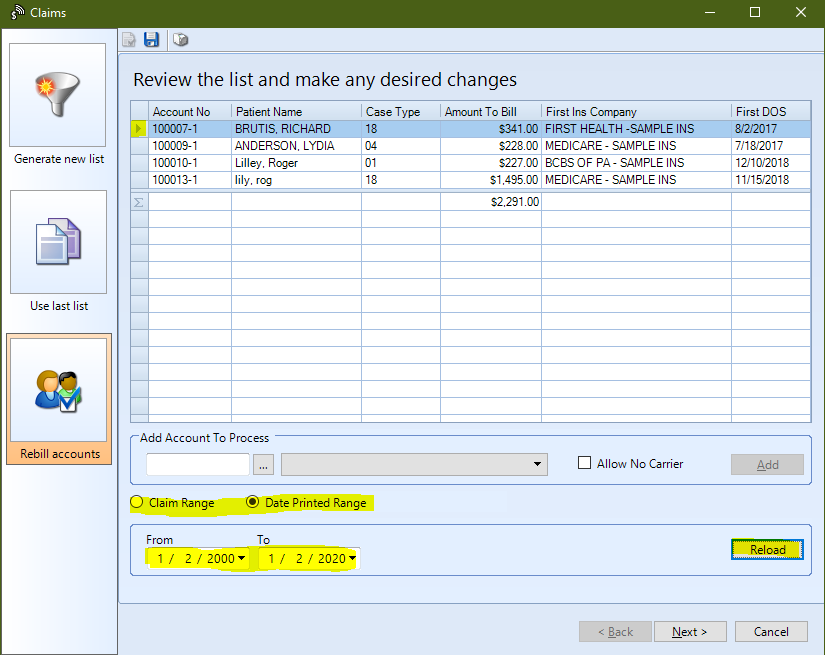
- Click on "Rebill Accounts" - if you get a warning say YES to overwrite last list
- Use the Claim Number Range or Date Printed and then click "Reload"
- Now you will get the list of what will be printed, you can edit the list and remove any if need then hit next. (mouse-over the first cell in the row, it looks like a play sign, then hit "delete" key on keyboard
- Choose desired "Form Output" type on next screen just like new claims, i.e. Paper or Electronic. In this example choose "Paper > HCFA 02/12" on the Form Output Tab. Now you can hit "Process" to print them.
0 Comments