
The Report Generator allows you to create customized reports. If you cannot find a particular report that is in the program then this a great feature to use.
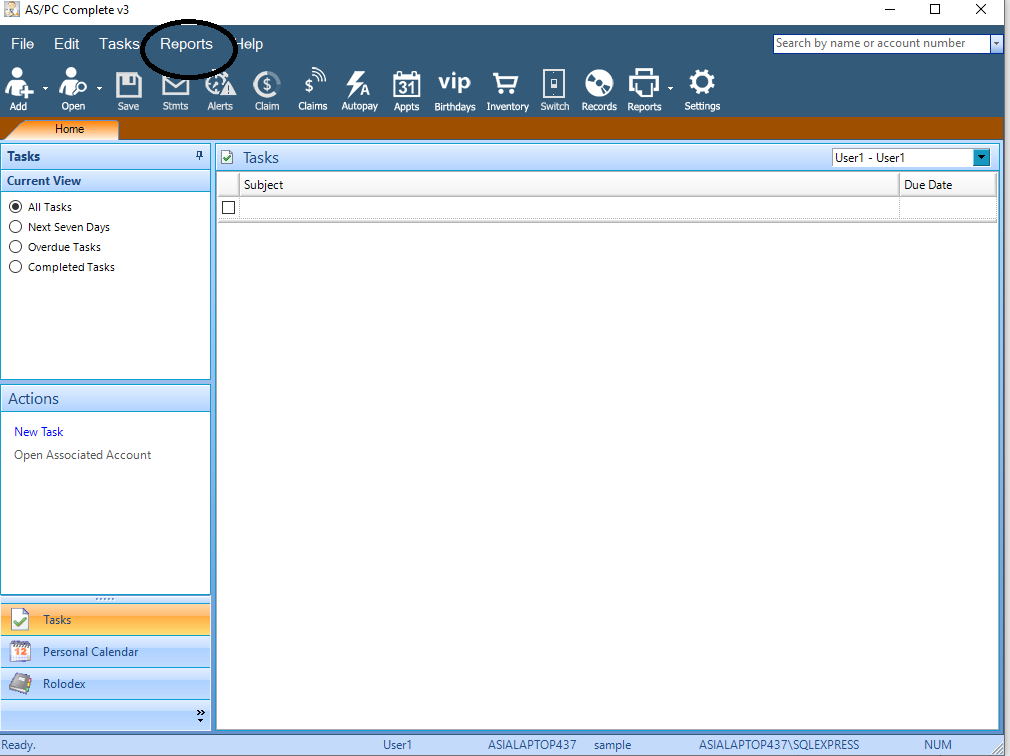
Click on Reports, then from the drop down list select Report Generator.
A window will pop up that gives you a list of fields to add to your report. You can view the report generator in two different ways. These views include the Report Generator Wizard and Advanced Mode.

In Advanced Mode, the fields are grouped by sections.

To expand a section, click the + sign in front of it. When you expand each Section it will show the fields available to add to the report For example, if you expand Patient, you can select the patient Name, Address, Phone number Etc.

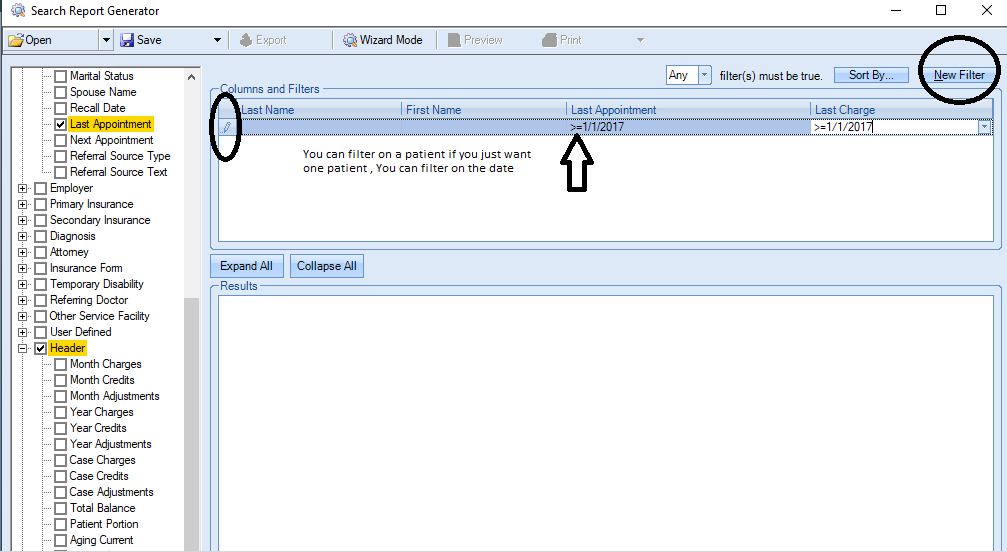
Once your fields are selected, you can add filters. To do this click "New Filter". This creates a Line where you can add your filter(s). Under the field to filter on, select the operator from the drop down list and type in the value.
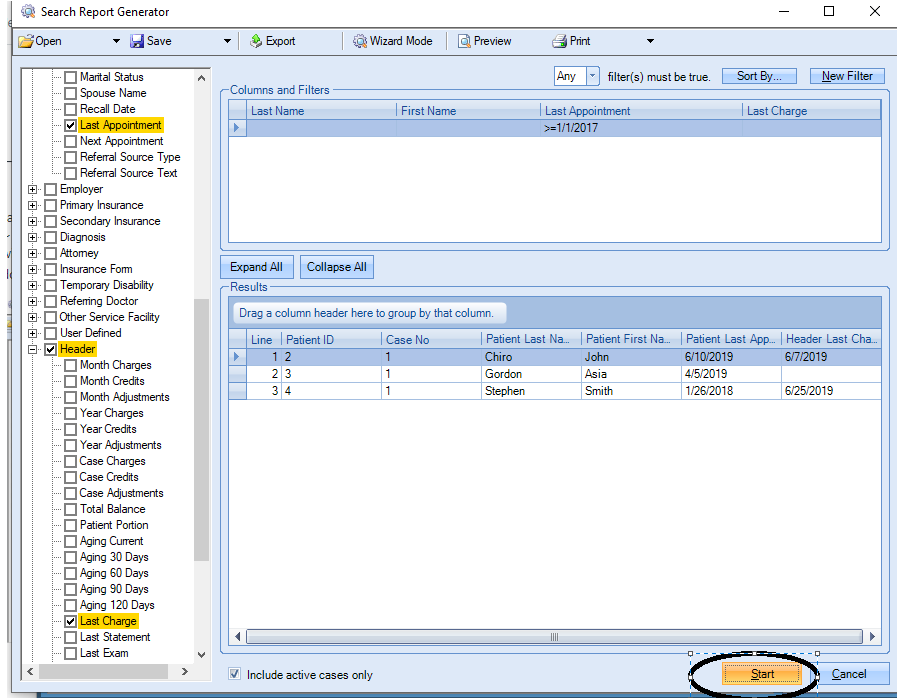
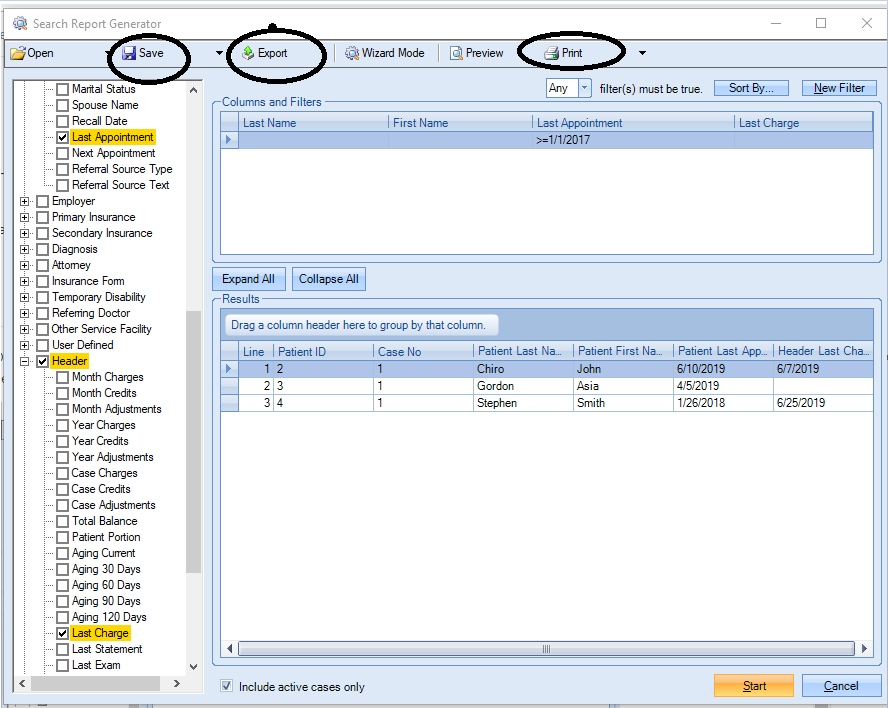
After your filters are applied, click "START" at the bottom of the screen to see your results. You can "Export" your results to Excel, or you can print it as a report or mailing labels, if names and addresses are part of your report.
If this is a report you want to run more than once, you can save it so you do not have to recreate the same report again. Click "SAVE" and give your report a meaningful name and description. To rerun the report next time, select "OPEN" and select your saved report.
modified 11/22/2019 NSM
0 Comments