
This report will produce a list of charges for the desired date range. The results are subtotaled by rendering doctor. You may also use filters on any available fields to limit the results and can sort by first or last name.
Accessible via the Reports menu.

REPORT BASICS
- Set the desired date range on the top of the report along with any optional filters.
- Then use the Generate button on the bottom to refresh the data.
DATE RANGE AND FILTERS
- Set the desired date range
- Optionally click the 'add filter criteria' button shown below.

CREATING FILTERS
- Select the field you want to filter under 'Choose Field'.
- Now select the operator currently on 'Equal' in our example below.
- Next supply the data you want to use as a filter. The field is a drop-down and will present you with possible choices from data stored in that field. You may also type what you need here.

EXAMPLE FILTER
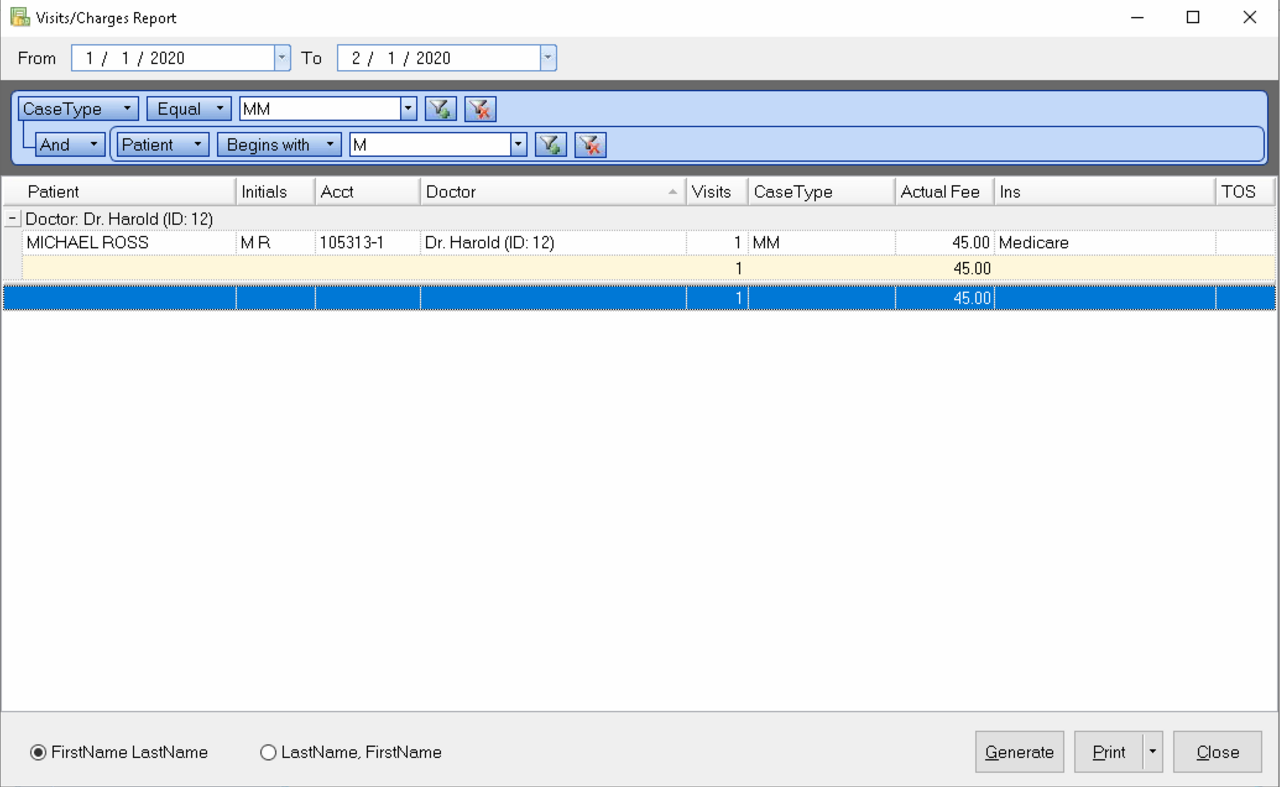
In the example below we have created two filters to narrow down our report to 'Case Type MM' and Patient Names that begin with 'M'. Talk yourself through it if having trouble deciding to use 'AND' or 'OR' between filters when using more than one.
In the example below if we had used 'OR' we would get too many results since we said it could be either of them and not both. We would get all Case MM and all patients who's name begin with 'M' since it could be one OR the other. Whereas saying it must be Case MM AND name begins with 'M' both conditions must be true. In this example we have FirstName/LastName selected
PRINTING RESULTS
- First use the Generate Button to refresh your results
- You can Print, Preview, or create PDF File of the report

NEW CODE FIELD [Type of service]
Note there is a new field here called 'TOS' which is data that can be stored with the charge. This field is optional to use when billing charges. It has zero effect on insurance claims and is for internal use only. The field is populated with data stored in the patient chart > Ins Form tab in the Type of Service field.
This is optional and can be used for organization or tracking if desired. You can make up your own values by clicking the 3 dots to browse all the TOS codes on file. This is where you can add codes you wish to use or choose an existing code. Any code that is present here at the time of billing or saving the charge again, will be stored in the TOS field of that charge. You can then filter on that to narrow down your report.
0 Comments