
Calendar Settings:
- General
- Display options
- Appointment Options
- Clinic Hours
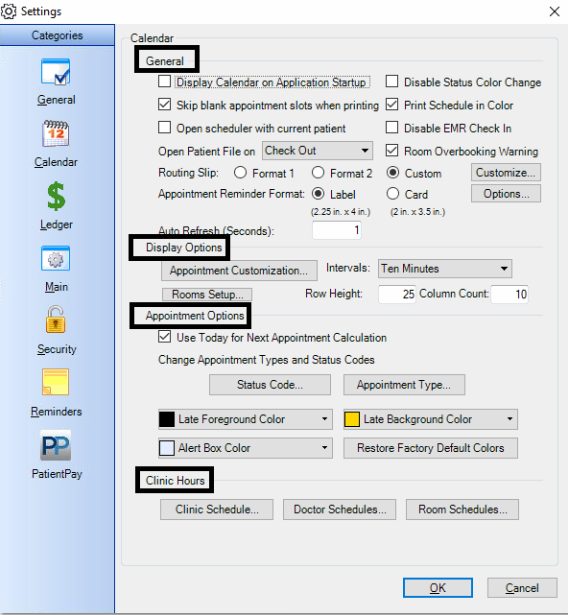
General:
- Display Calendar on Application Startup
- Skip blank appointment slots when printing
- Open scheduler with current patient
- Open Patient File on: Check in, Check out, or Both
- Choosing a Routing Slip Format: Format 1 or Format 2
- Appointment Reminder Format: Label or Card
- Auto Refresh (seconds)
- Disable Status Color change
- Print scheduler in Color
- Disable EMR Check In
- Room Overbooking Warning
Display Options:
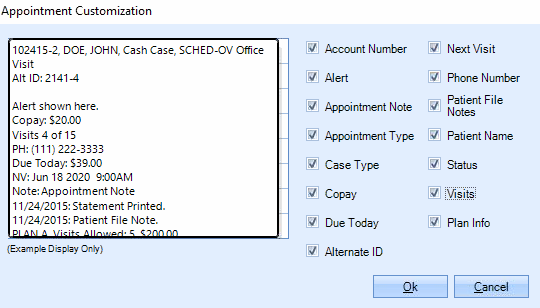
- Appointment Customization – choose fields to display in Appointment pop-up
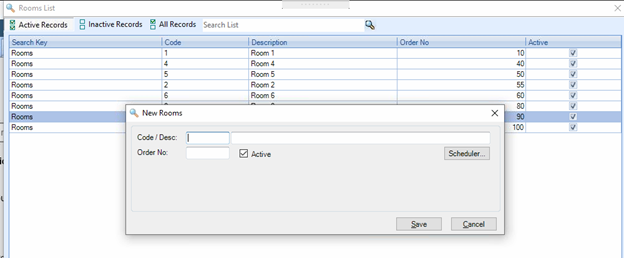
- Room Setup – add or remove rooms
- Intervals
- Row Height – default = 25
- Column Count
Appointment Options:
- Use Today for next Appointment calculation. If checked and patient is on scheduler for today, Next appointment will display today’s date. If unchecked, it will display the following appointment.
- Status Code – add or remove Status codes
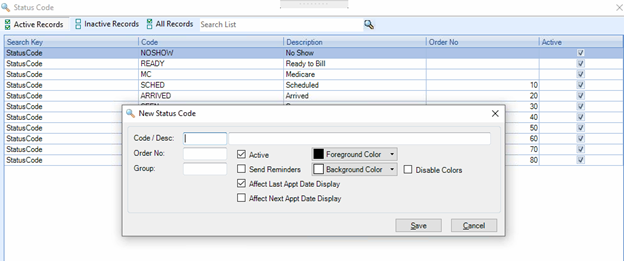
- Appointment Types – add or remove Appointment Types
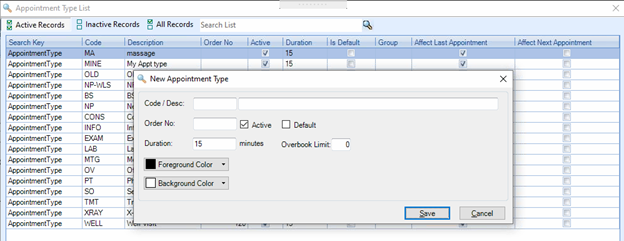
- Late Foreground Color
- Late Background Color
- Alert Color Box
- Restore Factory Default Colors
Clinic Hours: Set the Start and End times for each day, and mark exceptions to those hours for time off.
- Clinic Schedule
- Doctor Schedules
- Room Schedules
Scheduler Reports:
Click the Down Arrow on View menu to access reports
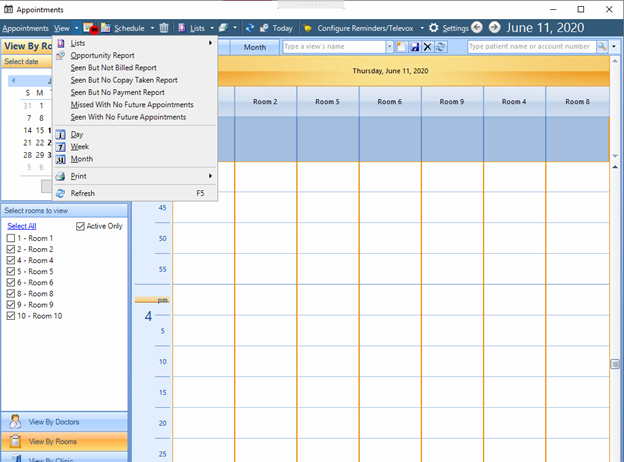
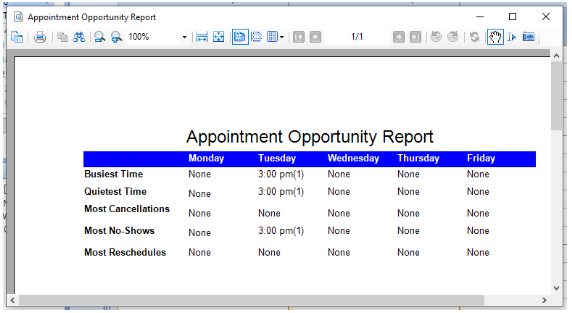
Opportunity Report:
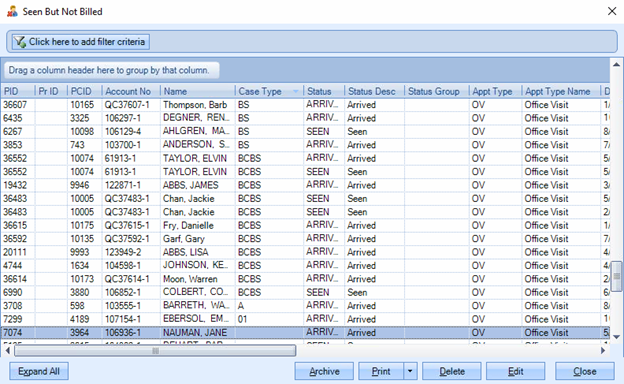
Seen But Not Billed Report:
- Lists patients who were checked in but charges were not entered.
- Can be sorted by any field by clicking the column header.
- Can be grouped by any field.
- Can be filtered by any field
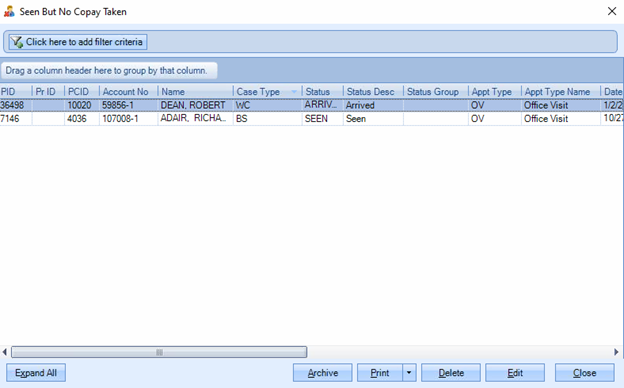
Seen But No Copay Taken Report:
- Lists patients who were checked in but their CoPay was not collected
- Can be sorted by any field by clicking the column header.
- Can be grouped by any field.
- Can be filtered by any field
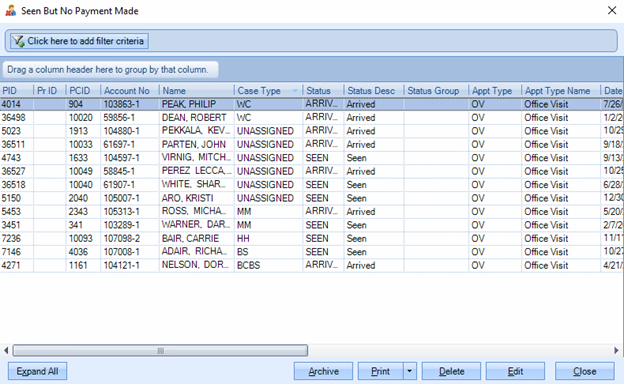
Seen But No Payment Report:
- Lists patients who were checked in but no payment collected, including copays and deductibles.
- Can be sorted by any field by clicking the column header.
- Can be grouped by any field.
- Can be filtered by any field
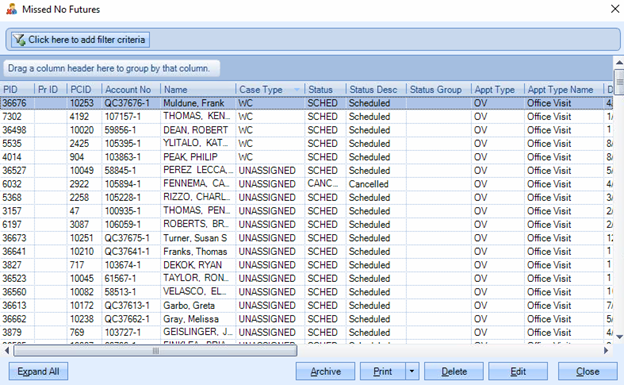
Missed With No Future Appointments:
- Lists patients who did not show up for an appointment and have no next appointment scheduled,
- Can be sorted by any field by clicking the column header.
- Can be grouped by any field.
- Can be filtered by any field
Seen with no future appointment:
- Lists patients who were checked in but have no next appointment scheduled,
- Can be sorted by any field by clicking the column header.
- Can be grouped by any field.
- Can be filtered by any field

Click the Down Arrow on Lists menu to access additional reports

All:
- Lists all patients appointments on the scheduler.
- Can be sorted by any field by clicking the column header.
- Can be grouped by any field.
- Can be filtered by any field
No Show List:
- Lists patients who were scheduled, but never arrived.
- Can be sorted by any field by clicking the column header.
- Can be grouped by any field.
- Can be filtered by any field

Archived – Records on all the above reports can be archived to make the reports manageable. This report will show you the list of archived records. See the User Guide at Archive Appointments
Users who viewed this guide, also found the following helpful:
- To Customize appointments letters follow the guide at Appointment Letters
- To send an ICS file by e-mail follow the guide at Emails With ICS File
- To batch check eligibility follow the guide to Check Eligibility from the Appointment Scheduler
M 12/16/16 -- BH 4/26/17--- AMG 06/10/2020 revised 6/12/2020 NSM -- revised 9/24/20 Aubrae
0 Comments